

Android TV Stuck on Logo Screen: Causes and Recovery Guide
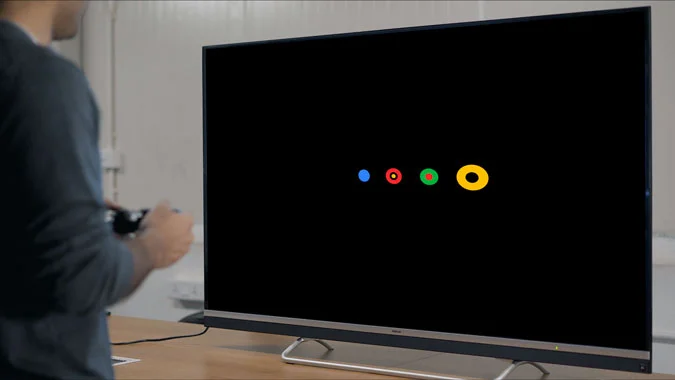
You power on your Android or Google TV, the brand logo or bouncing Android animation appears, and there it stays—frozen indefinitely. When a television is stuck on the boot logo, the operating system has stalled during its kernel initialization and cannot load the home launcher.
This is a specialized software/firmware fault that affects Android-powered smart televisions across Sony, Mi, TCL, OnePlus, Vu, and realme brands. Here is how to diagnose and resolve it.
Why Does an Android TV Freeze on the Logo?
1. Operating System Partition Corruption (tested during TV motherboard repair)
Sudden power outages while Android is writing background log files, cache updates, or app updates can corrupt the /system or /data storage partition on the TV’s internal eMMC flash storage.
2. Bad eMMC Flash Memory Sectors (requiring dedicated Android TV repair in Coimbatore)
eMMC flash memory has a finite number of read/write cycles. Over 4 to 6 years of continuous usage, bad storage sectors develop, preventing the Android kernel from mounting essential system drivers.
3. Failed Background Android OTA Update
If an automatic Over-The-Air (OTA) update fails to download cleanly or is interrupted mid-installation, the bootloader becomes stranded between system versions.
How to Recover an Android TV Stuck on Logo
Method 1: Hardware Button Hard Reset (if the device resets constantly, check our guide on Smart TV boot loop repair) (Recovery Mode)
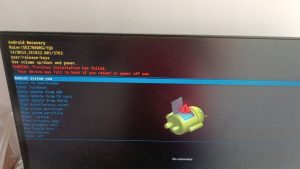
Many Android TVs feature physical buttons that allow you to access Android Recovery Mode:
- Unplug the TV power cable from the wall.
- Locate the physical Power and Volume Down buttons on the TV chassis (often on the back or bottom bezel).
- Press and hold both buttons simultaneously while plugging the power cord back into the wall outlet.
- Continue holding the buttons until the status LED flashes green/amber or the Android Recovery screen appears.
- Use the remote or physical buttons to select Wipe Data / Factory Reset and confirm.
Method 2: USB Firmware Flashing
If recovery mode is inaccessible, the TV firmware must be re-flashed via USB:
- Download the official OEM recovery firmware matched precisely to your TV model and panel number.
- Format a USB drive to FAT32 and copy the
.binorupdate.zipfirmware file to the root directory. - Insert the USB drive into the TV’s service USB port and trigger the forced USB flash sequence.
Professional Android TV Software Recovery in Coimbatore
Flashing wrong firmware can permanently brick your television. At JK Electronics 360, our technicians maintain an extensive database of verified factory firmware and dedicated eMMC programmers to recover frozen Android TVs safely. Contact our TV service center in Coimbatore for expert help.
Frequently Asked Questions
1. Will wiping data in recovery mode fix a TV stuck on the logo?
Yes. A factory reset in recovery mode clears corrupted app caches and user data partitions, successfully resolving over 70% of Android logo freeze issues.
2. Can a failing power supply cause the TV to hang on the logo?
Yes. If the power supply drops voltage when the high-current backlight and Wi-Fi drivers initialize during boot, the processor can freeze on the logo screen.
3. Can I use any USB drive to flash TV firmware?
It is best to use a reliable USB 2.0 flash drive under 16GB, formatted in FAT32, as many TV bootloaders cannot read large exFAT or NTFS drives.