

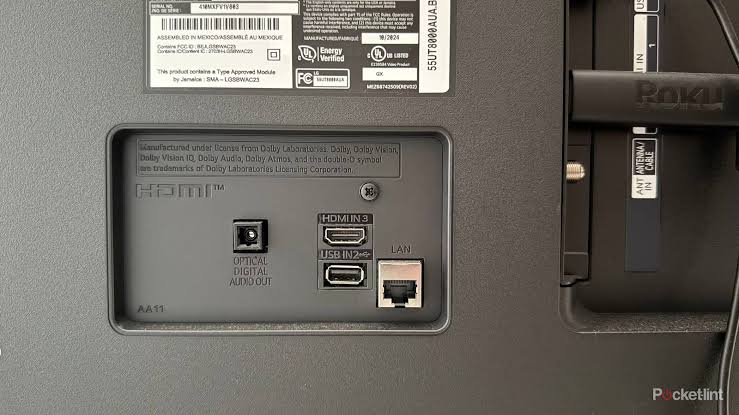
HDMI Port Not Working on TV: Causes and Repair Solutions
You connect your DTH set-top box, gaming console, laptop, or streaming stick via HDMI, but the TV displays a persistent “No Signal” or “Unsupported Format” error message. HDMI issues disrupt home entertainment and can prevent you from using external media sources.
HDMI problems range from simple handshake negotiation failures to physically bent port pins and blown electrostatic discharge (ESD) protection chips on the motherboard.
Why Is Your TV’s HDMI Port Not Working?
1. HDMI Handshake (HDCP) Negotiation Glitch
HDMI requires a real-time cryptographic handshake between the source device and the television. If either device experiences a software timing lag, the TV fails to recognize the incoming video stream.
2. Physical Port Damage & Broken Connector Pins
Repeatedly inserting or yanking heavy, stiff HDMI cables strains the internal solder pads holding the port to the motherboard. Bent internal pins can cause signal shorts or lose contact with the cable.
3. Blown ESD Protection Diode (serviced during TV motherboard repair)
Connecting or disconnecting HDMI cables while both the TV and source device are powered on can discharge static electricity (ESD) through the cable shield. This surge blows the microscopic ESD protection diodes or HDMI switch IC on the motherboard.
Step-by-Step HDMI Troubleshooting Checklist
- Perform an HDMI Handshake Reset:
- Turn off both the TV and the connected external device (set-top box/console).
- Unplug both devices from their electrical wall outlets.
- Disconnect the HDMI cable from both ends.
- Wait 5 minutes. Reconnect the HDMI cable firmly to both devices.
- Plug power cords back in and turn on the TV first, followed by the source device.
- Test Multiple HDMI Ports: Switch the cable to HDMI 2 or HDMI 3. If other ports work, the primary port has physical or ESD damage.
- Test with a Certified High-Speed HDMI Cable: Use an HDMI 2.0 or 2.1 cable to ensure sufficient bandwidth for 4K and HDR content.
- Adjust Output Resolution (if picture shows but audio is missing, see TV has no sound common causes): Lower the output resolution on your set-top box or laptop to 1080p to test if the TV’s HDMI receiver is failing on high-frequency 4K signals.
Precision HDMI Port Replacement in Coimbatore
Don’t replace your whole motherboard just because an HDMI port is damaged. JK Electronics 360 performs precision SMD HDMI port replacements and ESD protection chip repairs. Contact our TV service center in Coimbatore for reliable diagnostics.
Frequently Asked Questions
1. Why does my TV say “No Signal” when the HDMI cable is plugged in?
This is commonly caused by an HDMI handshake failure, an incorrect input source selection, a damaged HDMI cable, or a blown HDMI switch IC on the TV motherboard.
2. Can an HDMI port on a TV be replaced?
Yes. Skilled technicians can desolder the damaged HDMI socket and solder a brand new OEM port onto the motherboard using specialized hot-air rework stations.
3. Is it dangerous to hot-plug HDMI cables?
Yes. Connecting HDMI cables while devices are powered on can send electrostatic surges across ground pins, potentially destroying the HDMI receiver chip.
1 Comment
TV Has No Sound? Common Causes & Step-by-Step Fixes
September 3, 2026[…] an Audio Self-Test (if no sound occurs specifically over HDMI, see our guide on HDMI port not working on TV): Navigate to Settings > Support / Device Care > Self Diagnosis > Sound Test. If the test […]